

Choosing your first photo editor can be surprisingly difficult. Even a quick search reveals dozens of options packed with tools you don’t understand and don’t need. Does photo image editing have to be so complex?
Luckily, no. The modern software market provides tools with automatic adjustments, guided tools, templates, and other beginner-friendly features.
In this guide, we compare several software options for easy photo editing for casual and newbie users. You will see what each one does best, where it may fall short, and what post-processing needs it suits best.

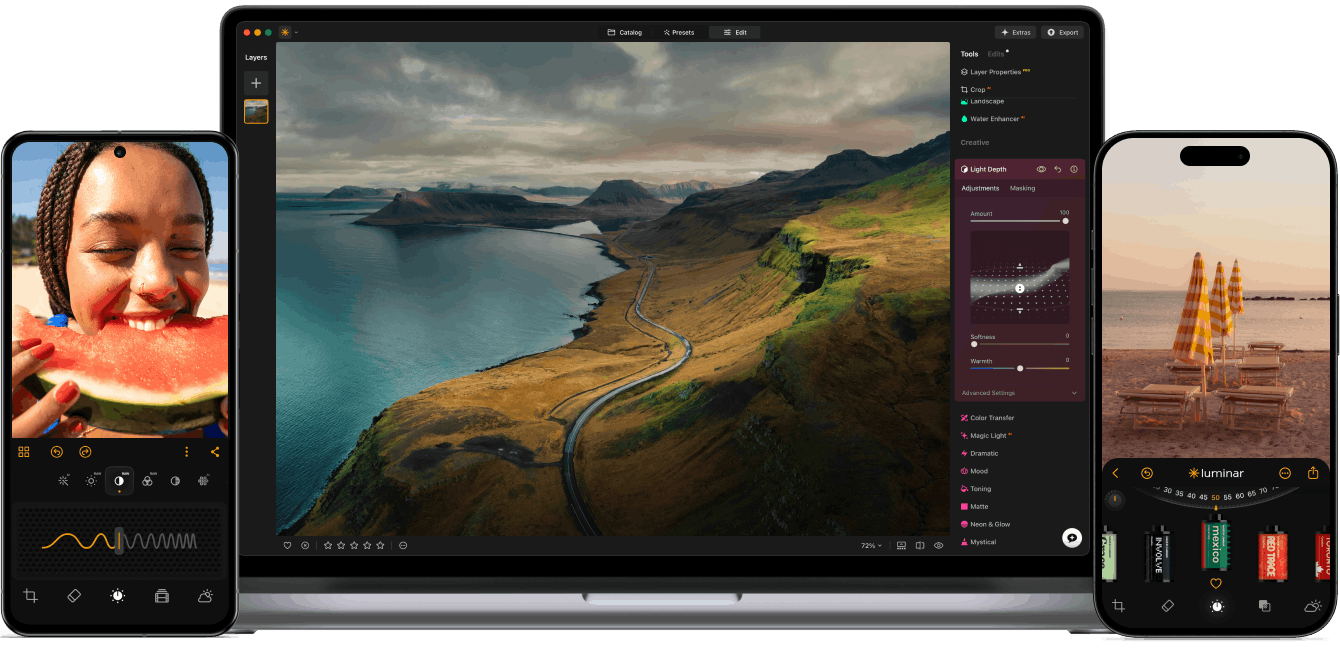
1. Luminar
If you want to edit a photo with AI, Luminar is especially useful for tasks such as enhancing overall appearance, improving portraits, or changing the mood of a scene. It is a good fit for casual photographers who want guided tools with room to grow into more complex modifications.
The Desktop version (~$114) works on Mac and Windows. Cross-device (~$148) and Max (~$183) tiers also include mobile apps for iOS, Android, and ChromeOS.
| Pros | Cons |
| Beginners can experiment with individual adjustments without needing extensive knowledge of photography settings. | The creative tools go beyond basic corrections, and not all beginners and hobbyists might need them. |
| A non-destructive workflow eliminates the fear of making a mistake and losing the original photo. All the edits are reversible. | This simple photo editing software uses more storage and processing power than lightweight browser-based competitors. |
| Presets are good for developing a consistent look across multiple images. |
2. BeFunky
BeFunky is mostly known as a mobile app for iOS and Android. However, if you edit photos on a desktop, you can use your browser to access the web version.
The core app is free, but there are Plus ($14.99/month or $83.88/year) and Pro ($24.99/month or $149.88/year) versions with extra features.
Alongside photo tools, BeFunky lets you make collages and simple designs. You can use it if you often turn your pictures into posts, cards, or other visual projects.
| Pros | Cons |
| Users can start editing photos without creating accounts or paying for a subscription. | The Pro plan uses monthly credits for its AI batch tools, which adds another limitation for high-volume work. |
| A Collage Wizard can automatically create layouts from your selected images. | The free toolkit is limited; some of the most necessary features are unaffordable for budget-conscious users. |
| Batch tools allow users to apply standard changes to multiple images instead of handling each one separately. | Since it is a web-based editor, its performance highly depends on your Internet connection. |
3. Pixlr
Pixlr is good for photo editing for beginners who want to start with straightforward adjustments and gradually try more creative tools. If you move between devices and prefer not to tie your workflow to one computer, you will appreciate the editor’s cross-device synchronization.
Pixlr runs in a browser and also offers apps for Windows, macOS, Android, and iOS. You can download and use it for free, but if you need extra features and AI credits, paid options are also available.
Plus costs $2.49/month, Premium costs $9.99/month, and Ultra starts at $24.99/month when billed annually.
| Pros | Cons |
| Templates and design tools are available alongside photo editing features. | This editor may require some experimentation before beginners know which of its many tools are actually useful for their workflow. |
| Free access allows users to explore the app’s workflow before committing to a subscription. | This editor does not offer the same depth of traditional layer-based workflows as more advanced professional programs. |
| A wide selection of creative filters and effects for different visual styles. | Some AI features consume credits, so frequent use of AI-powered tools can require an additional payment. |
4. Adobe Express
Adobe Express works on the web and mobile devices. Adobe Express is a good fit for beginners who regularly share their photos online and want to do more than adjust the original image. For example, you can start with a vacation photo and turn it into a polished post.
The app is free, but its toolkit is quite limited. If you want to try more features, consider paying for Pro (~$10/month) and Premium (~$26/month).
The prices are listed in local currencies, so double-check the exact price for your region on the official website before purchasing.
| Pros | Cons |
| A large selection of templates gives beginners a starting point for social posts and other designs. | This editor can require an internet connection for many of its cloud-based features, which may be inconvenient when working offline. |
| You can add texts, graphics, and other design elements to your picture within the same workflow. | Users who mainly want to organize and process large photo collections may find this program’s capabilities limiting. |
| Users can resize and adapt content for different social formats, saving time when preparing the same idea for multiple platforms. |
Conclusion
There is no single winner when it comes to choosing a photo editor for the first time. The better question is whether a particular program fits the way you actually take and use pictures. Start with the tasks you perform most often, not the longest feature list.
Try the editor that feels closest to your needs, explore its free tools when available, and see how naturally it fits into your routine.
